
Audio/Video Conferencing
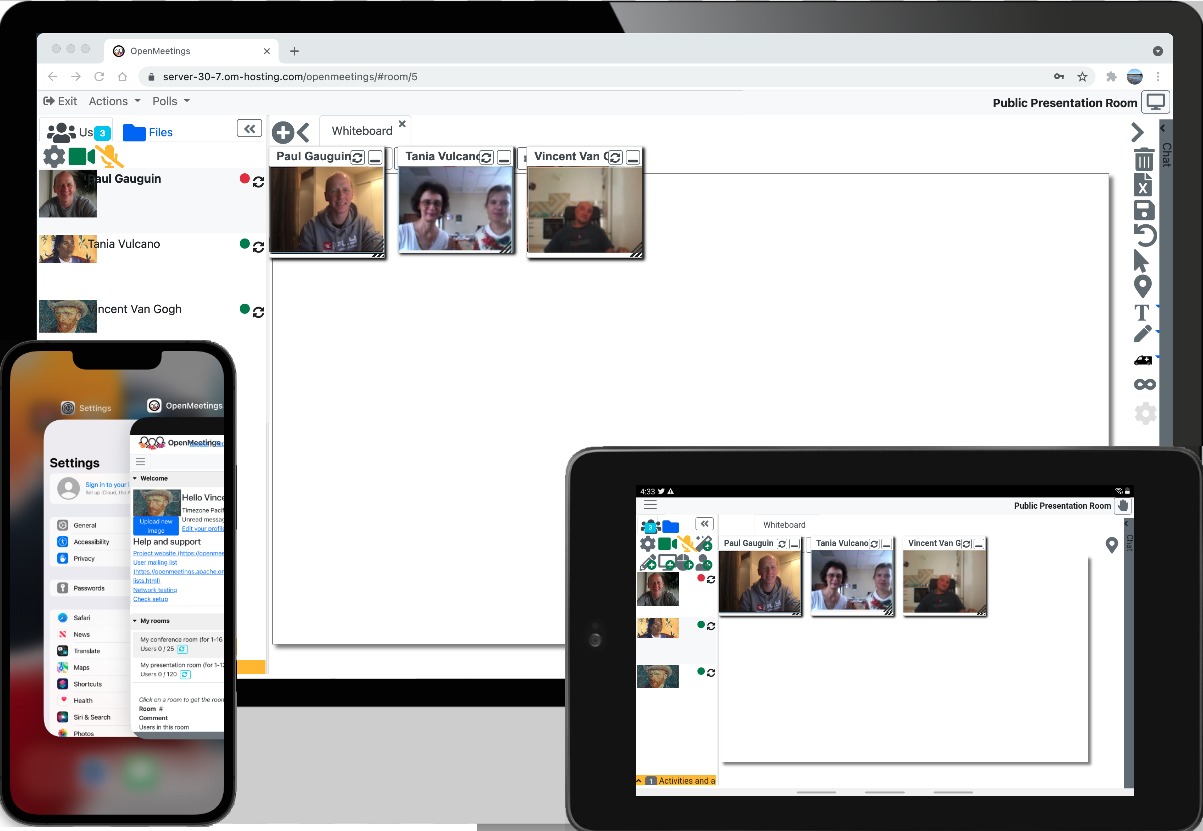
HTML5 Audio/Video conferencing with OpenMeetings in web and mobile.
Calendar
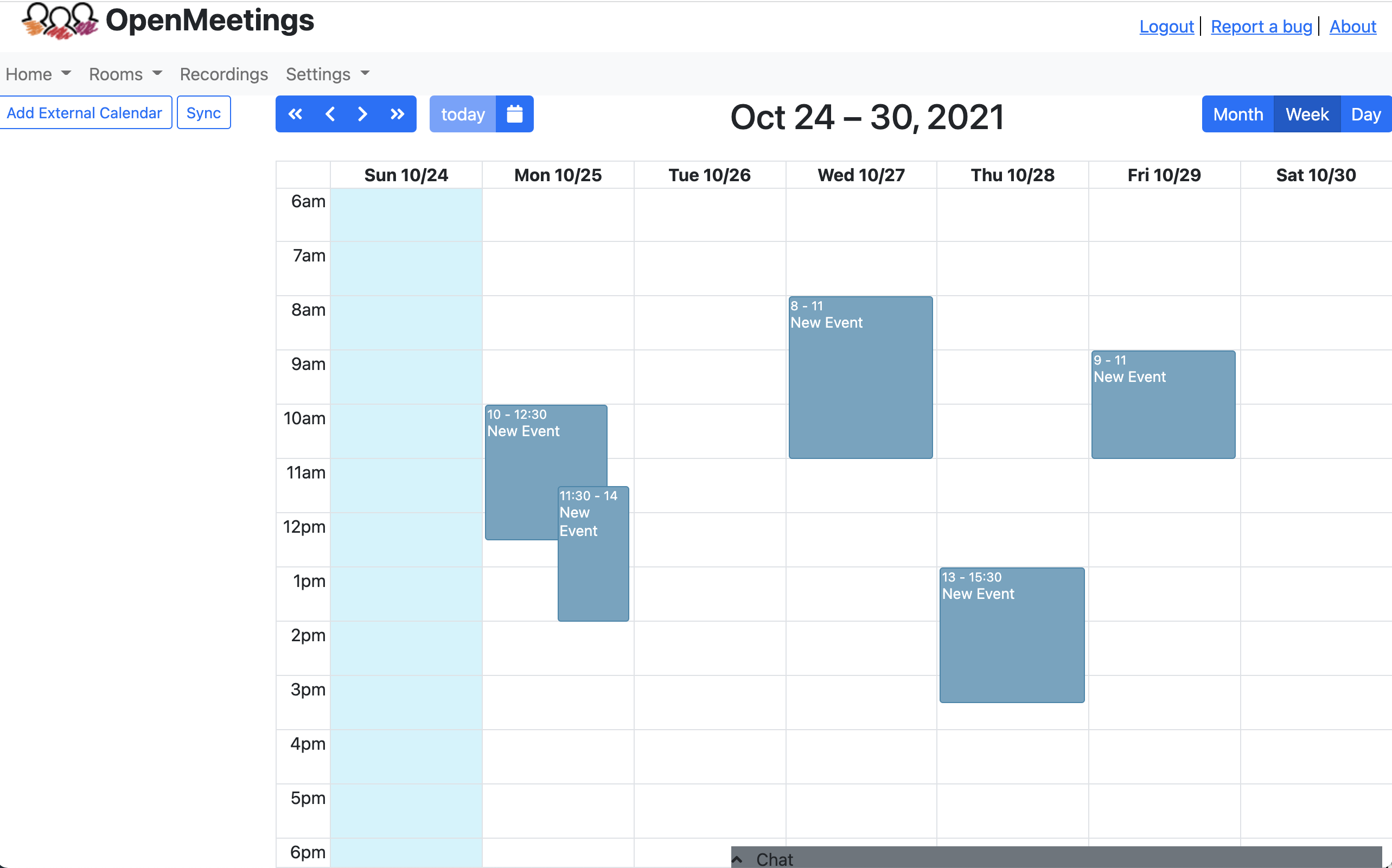
You can create meetings with the integrated calendar, conference rooms and invitations are automatically send to everybody
File Explorer
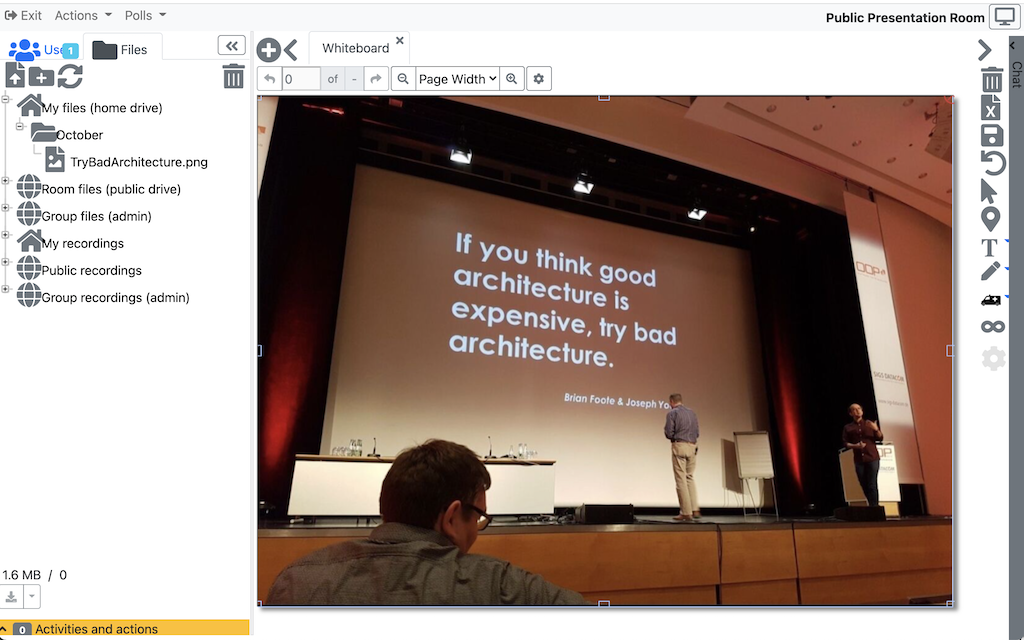
Each room has its own File-Explorer. Each user has his own private drive and additionally there is a public drive to share files with other participants
Integration API
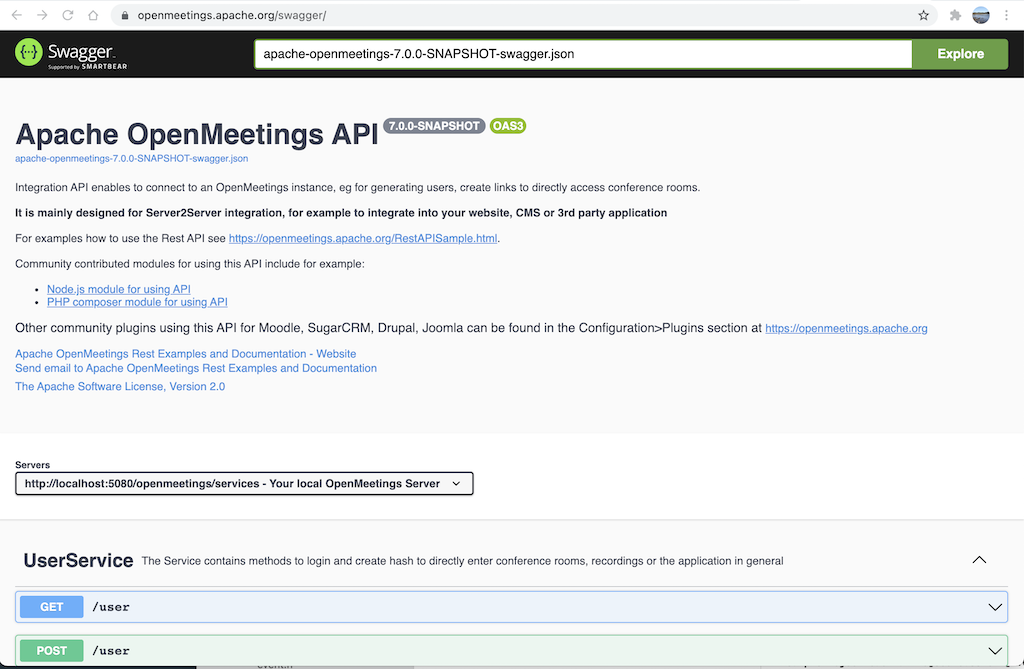
There is a REST (and SOAP) API to integrate into your website or intranet, as well as LDAP/ADS connectors and VoIP/Asterisk integration modules
Private messages and contacts
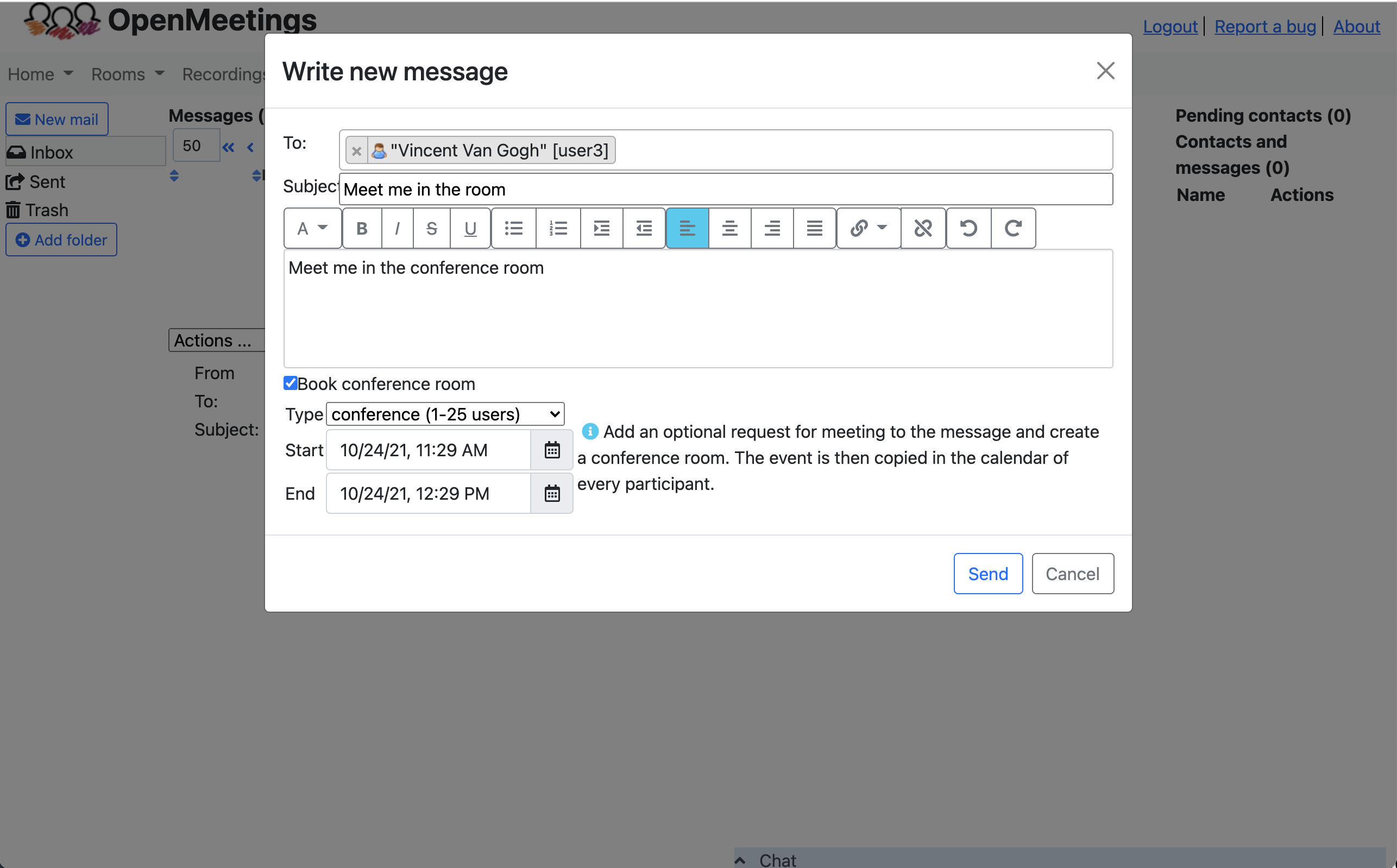
From the private message center you can send invitations by email and attach meeting invitations to every email
Administration and Configuration
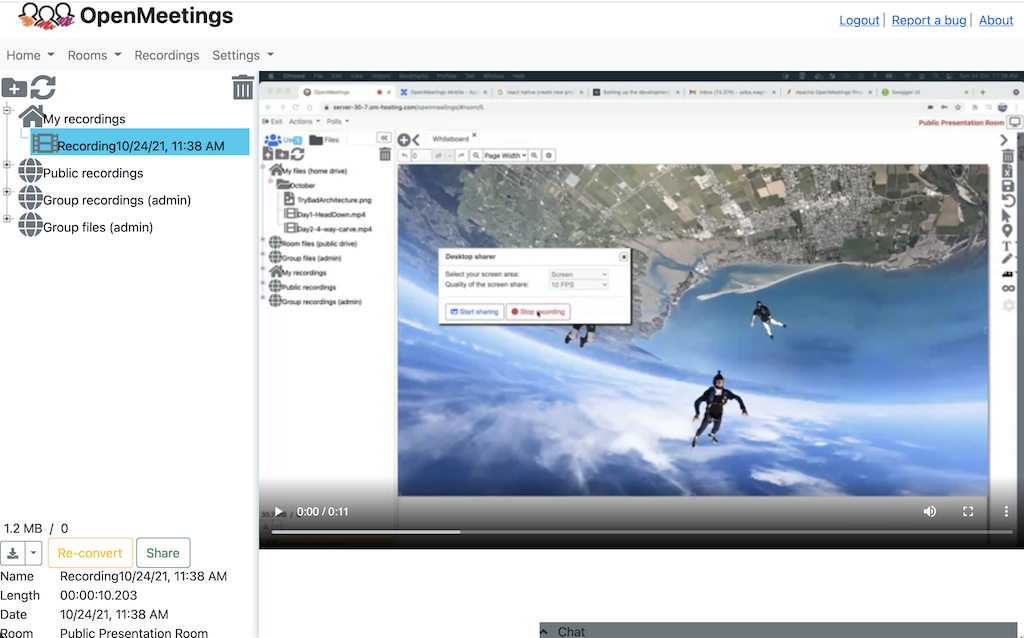
You can do screen sharing as well as recording of whole sessions including audio/video. Recordings can be downloaded as MP4 or watched online in the integrated player.
Screen sharing and Recording
>You can do screen sharing as well as recording of whole sessions including audio/video. Recordings can be downloaded as MP4 or watched online in the integrated player.
Apache OpenMeetings - Features and overview
Openmeetings provides video conferencing, instant messaging, white board, collaborative document editing and other groupware tools. It uses API functions of Media Server for Remoting and Streaming Kurento.
OpenMeetings is a project of The Apache Software Foundation, the old project website at GoogleCode will receive no updates anymore. The website at Apache is the only place that receives updates.
News
Version 9.1.0 released!
Release 9.1.0, provides following improvements:
CVE-2026-49488: Apache OpenMeetings: Arbitrary File Read
were fixed, please check Security Page
Security:
- More security checks in WB download service
- Default git branches are protected
- All libraries are updated to most recent versions
Other fixes and improvements
5 issues are fixed please check
CHANGELOG and Detailed list
Events
Nearest ApacheCon:
Other Apache Events:
Community
Who we are
Here is the list of our commiters. Contributions are welcome :)
Users!
We'd love to have you involved. Check out the Get involved.
Feature details
Audio and Video Conferencing
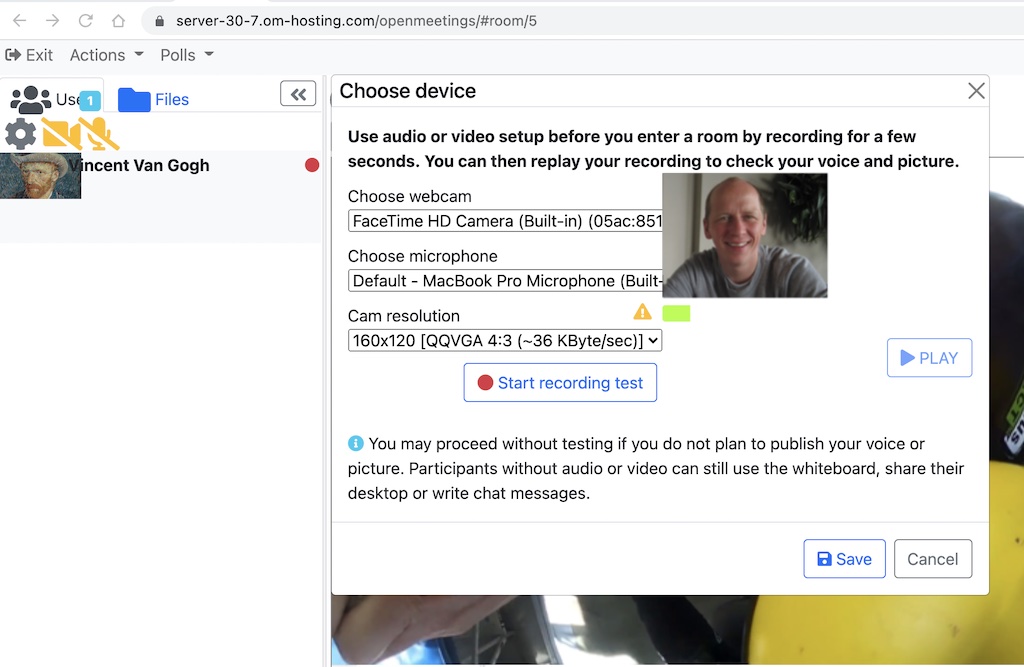
There are four options to use OpenMeetings audio/video functions, which you can select during a conference session.
- audio + video
- audio only
- video only
- picture only
Additional you can change video-/audio-quality, choose multiple camera resolutions (4:3, 16:9 or 3:2) and choose your input devices.
Meeting recording and Screen sharing
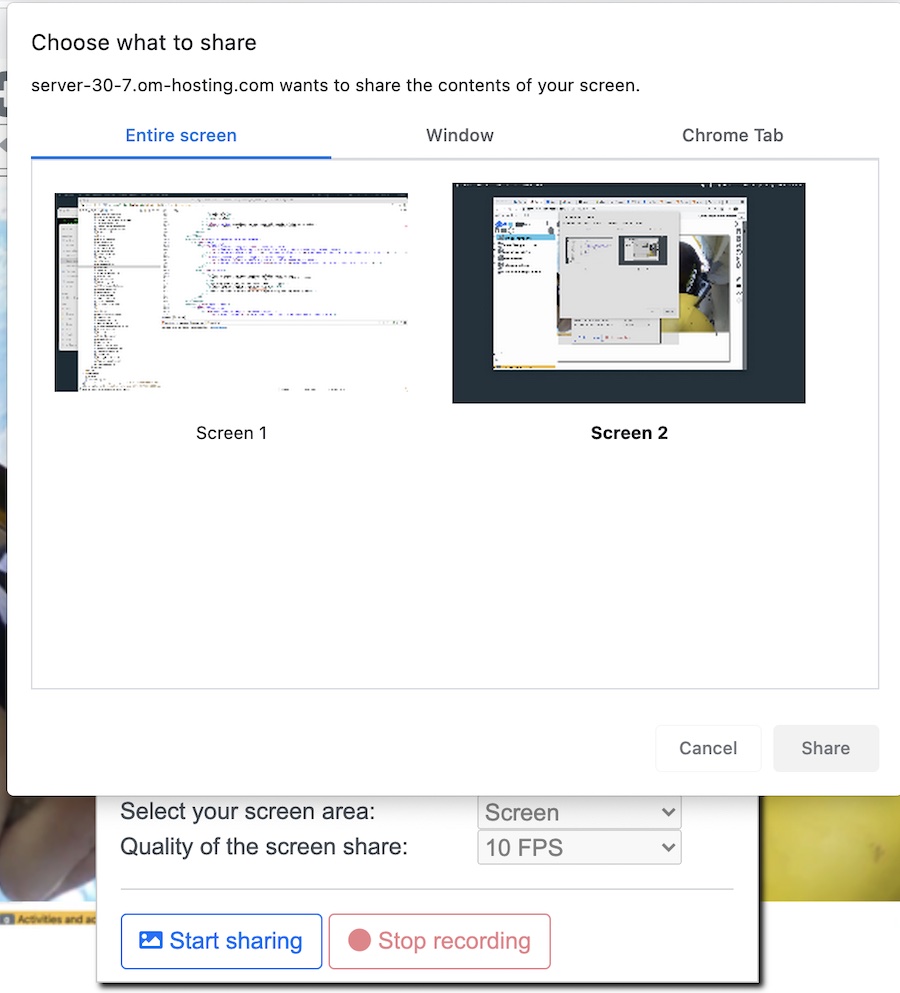
- Recorded sessions contain everything including sound recorded from all audio streams in exactly the way you've seen it in the conference.
- Recorded sessions can be downloaded as MP4 files.
- Possibility to select the desktop or one of your windows for sharing.
- Different quality steps for Screensharing.
- Watch and organize recordings in an integrated Drag and Drop File-Explorer
File Explorer
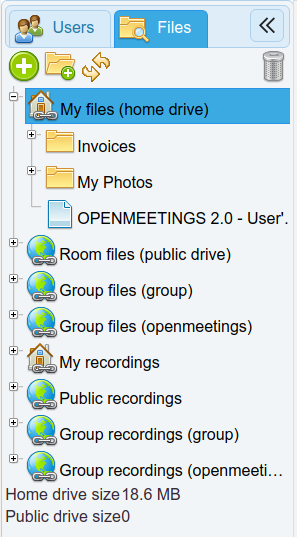
Advanced File-Explorer in every conference room, Drag and Drop interface for managing uploaded files, including the possibility to create a document tree with folders.
Private and Public Drive in File-Explorer. The File-Explorer has two different views, one is the Private Drive and the other the Public Drive. The Private Drive always contains the same files. Those files are visible only to the user currently loggedin. The Public Drive is not bound to the user, but to the conference room instead. All users in the conference room have access to the Public Drive.
Moderating System
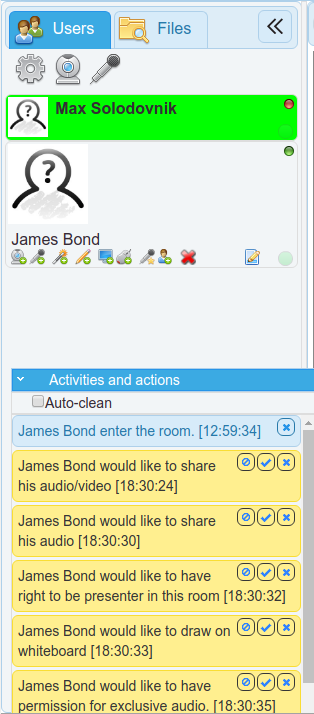
During a conference, the moderator can adjust the user permission to every user individually.
 Allow/Deny moderation
 Allow/Deny right to draw on white board
 Add/Remove presenter role
 Allow/Deny screen-sharing/record screen
 Allow/Deny Remote Control Screen
 Allow/Deny right for 'Mute others'
 Let one user to speak while others are muted
 Allow/Deny Video
 Allow/Deny Audio
Multi-Whiteboard and Chat
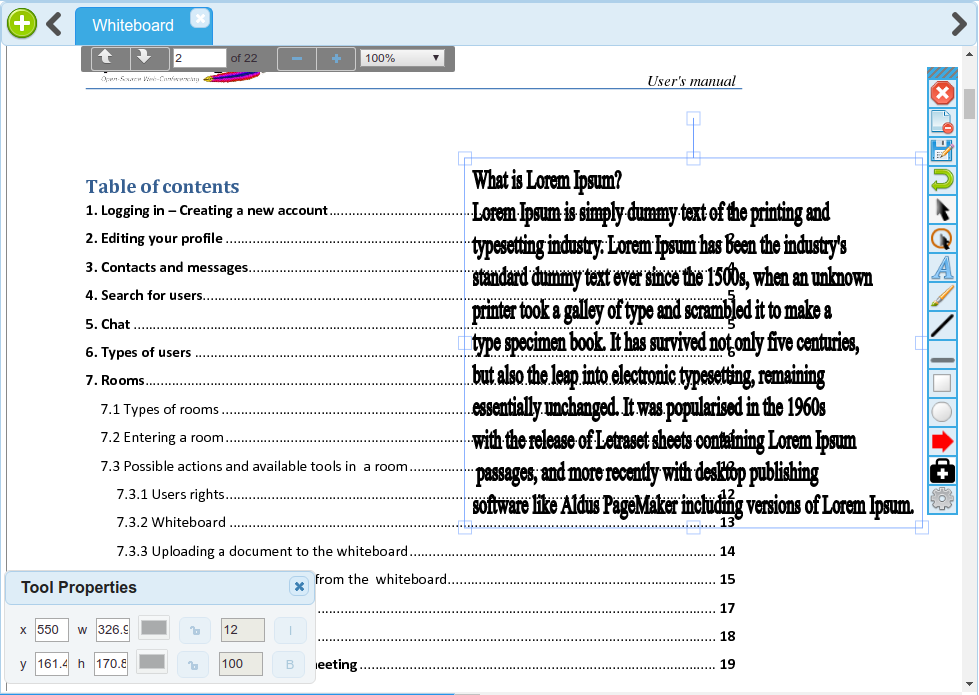
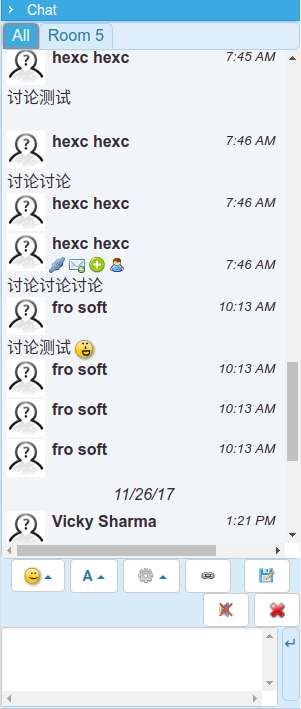
Multi-Whiteboard, you can add new whiteboard instances, each white board can have the full range of tools and documents inside.
Save white boards. You can save each whiteboard instance as a file. The file is located in the File-Explorer and can be drag n' drop'ed to the white board again and organized like any other document, image or folder.
White board with drawing, writing, Drag n' Drop, Resizing, Images (Drag n' Drop from File-Explorer), Symbol(s)/Cliparts.
Full-fit does rescale the document on the screen to be 100% visible on all screens no matter what kind of screen resolution different users have.
You can import from a wide range of document formats (PDF, DOC, ODT, PPT, et cetera...)
User and room management
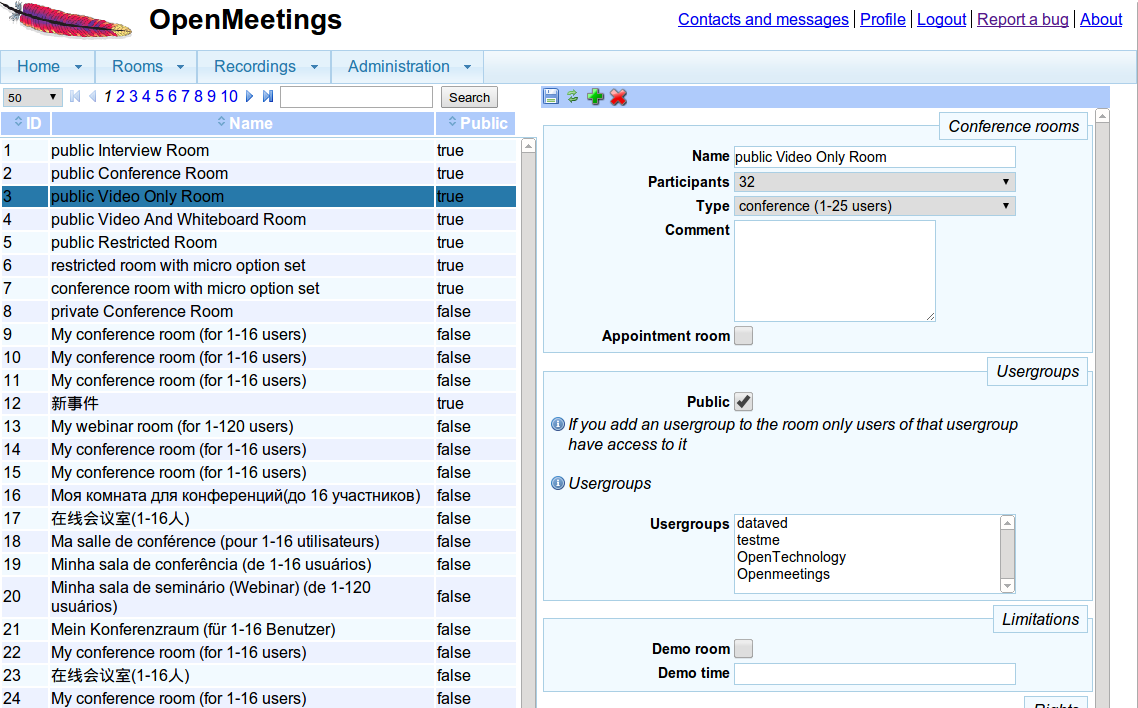
You can manage users and multiple organizations in a single OpenMeetings instance. You can also create users that only have access via the SOAP-API.
MyRooms section. Each user has by default 2 personal rooms that are always accessible exclusively for that user. There are buttons to enter those rooms from the Dashboard.
You can assign conference room to all users, or you can assign them only to specific user-groups.
Private message center
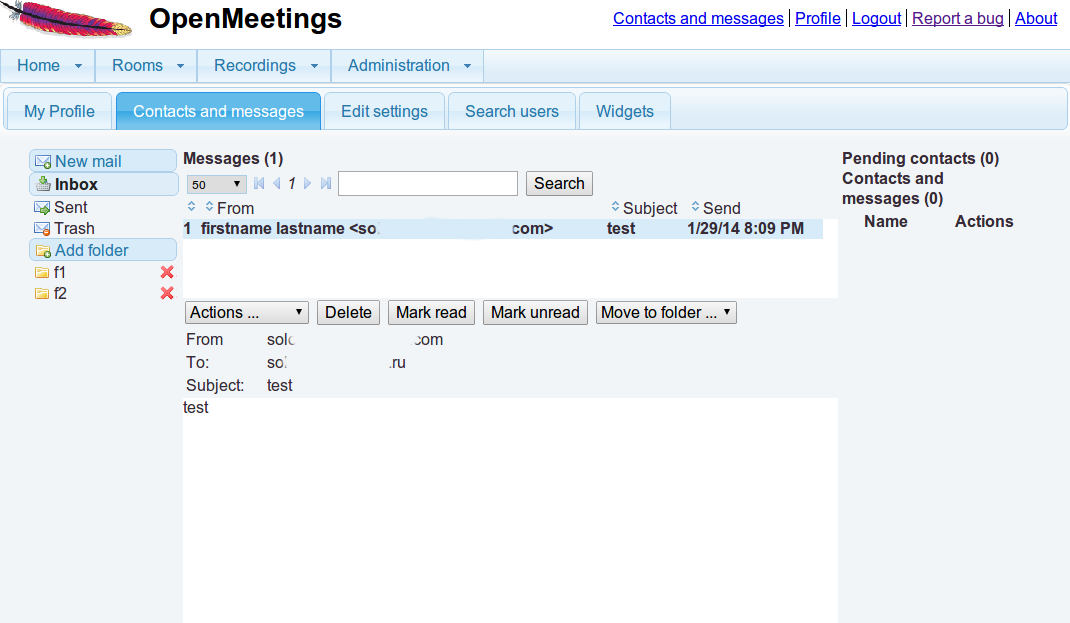
Send users messages and organize them in folders. You can book conference rooms by sending private messages. The booked event automatically is in your and the participants calendar, changes to that event will be populated to all users booked to the event.
User contacts, you can search users and add them to your contacts. You can even give them the right to see your calendar.
Plan meetings with integrated calendar
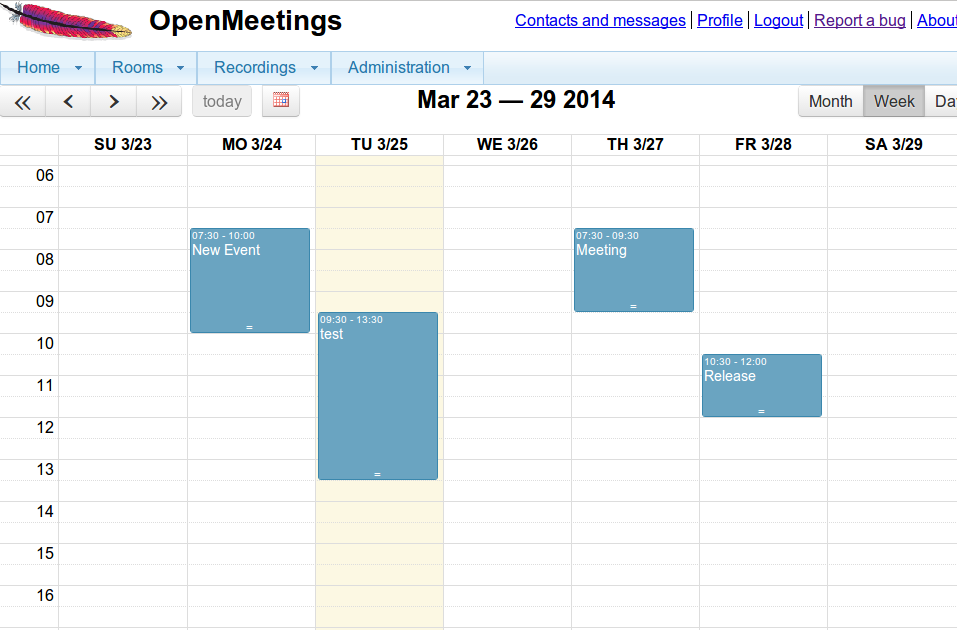
- Plan your conferencing and invite attendees from OpenMeetings or External.
- The invited attendees will recieve an E-mail with details to the meetings and a link with a secure hash to the conference room.
- Share your calendar with your contacts.
Polls and Votes
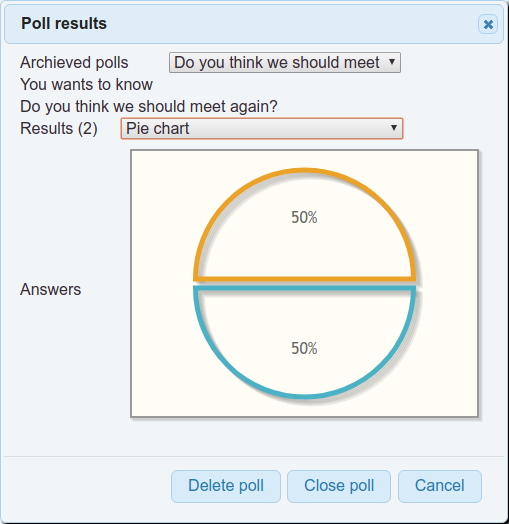
You can create a poll with yes/no or 1-10 questions, let the user vote and see the voting results.
Polls can be stored and results viewed as pie-chart
Backup
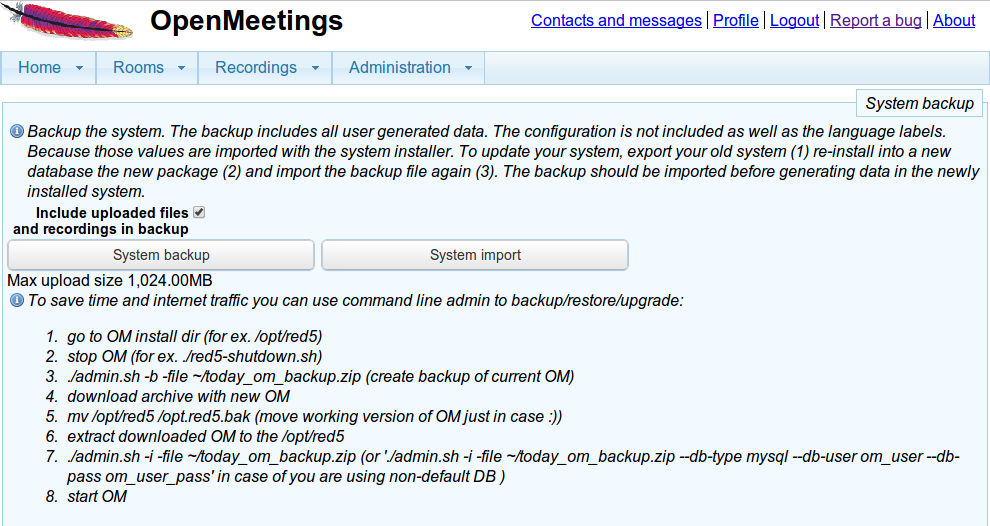
You can backup all user-generated data including files uploaded by the users in a single ZIP file and import that ZIP into a new installation of OpenMeetings again.